
Imagine artwork with an attractive outline around a fox illustration. The buyer wants that outline printed, while the returned proof treats it as the edge of the sticker. Both files can look convincing on a screen. The disagreement concerns a physical instruction that the design has not made explicit.
Before adding a cutline to sticker artwork, decide what should be cut, what should remain as backing and which lines are decoration. Then deliver a contour using the supplier's actual file convention. A certain line color or software command cannot resolve an undecided finished shape.
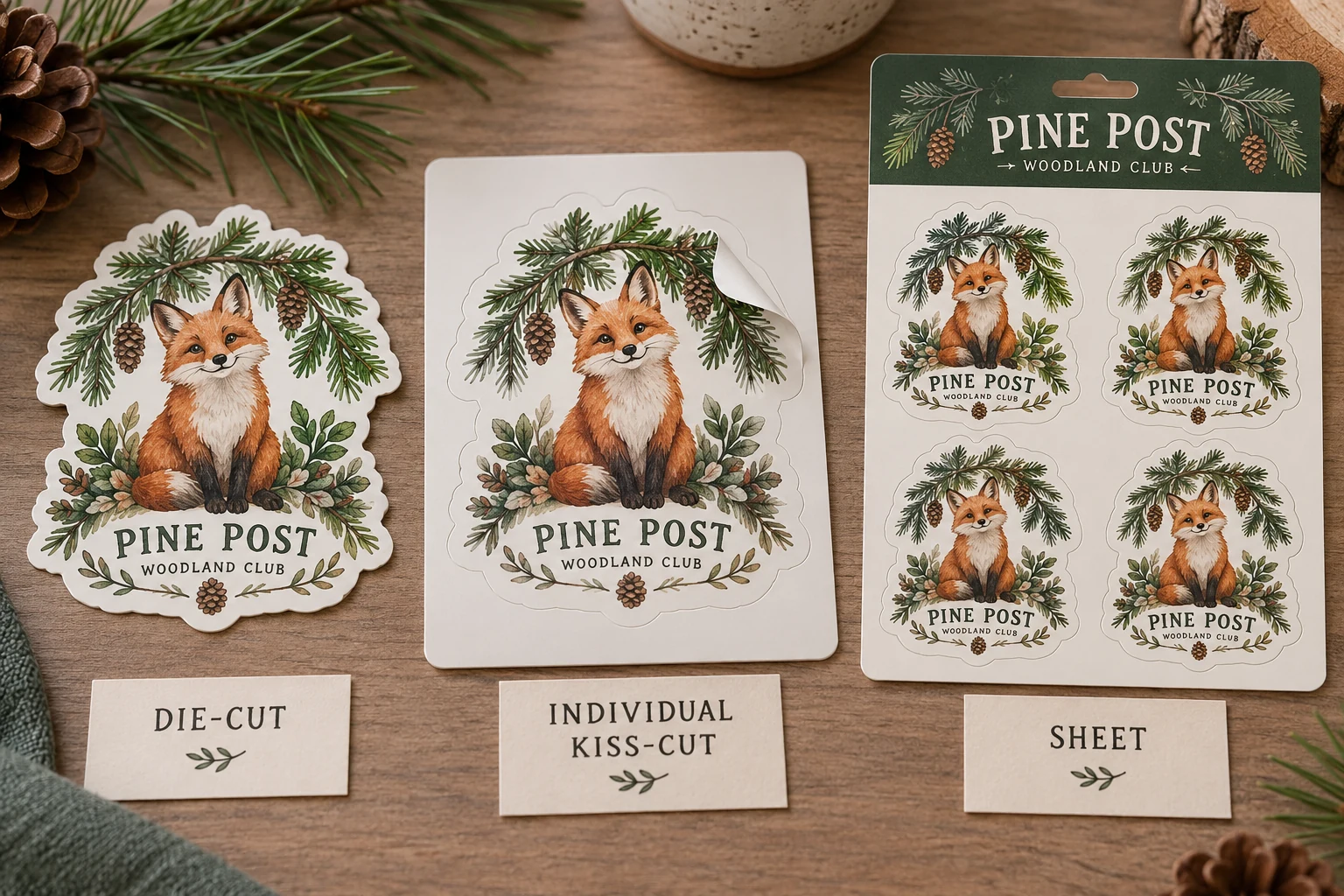
Name the finished product before drawing its edge
A die-cut loose piece and a kiss-cut sticker can show the same printed design but leave different backing around it. A sheet adds an overall backing size and relationships between individual stickers. A roll adds repetition, gaps and orientation requirements.
Use the finished-format comparison to settle that choice. Record the dimensions of the peelable label and the backing where relevant. “Make it like the picture” is insufficient when the picture hides the backing shape.
Separate an internal printed keyline from the intended outer cut. If a white border or transparent margin is wanted, show the relationship at final size. State whether the artwork should print to the edge or sit within a visible margin. Do not assume that any white area on a screen becomes a physical white border on clear material.
Build a contour that represents one clear instruction
Ask the supplier how the contour should be supplied: document structure, path identification, spot-color convention and any relevant output requirements. These details depend on the actual workflow. Do not copy another printer's special name or setting and treat it as an industry-wide rule.
For a simple outer shape, make the intended closed boundary unambiguous. Mark internal holes or separate cut features explicitly so they can be discussed. Overlapping duplicates, stray paths or several similar outlines make it harder to tell which instruction controls the finished piece.
If the buyer cannot prepare a suitable path, supply a clear appearance reference, dimensions and shape notes and ask what assistance is available. Do not invent a promise of free dieline work or assume that the first proposed contour is automatically accepted.
Review border, bleed and protected information separately
| Geometry item | What it controls | Buyer review |
|---|---|---|
| Cut contour | Intended physical separation | Final shape and dimensions |
| Printed border | Visible design around the subject | Appearance and relationship to the cut |
| Bleed | Artwork extending beyond the intended trim | Appropriate coverage for the agreed workflow |
| Protected information area | Content that must remain intact | Critical text, marks and meaningful details |
| Backing outline | Delivered support around the sticker | Handling, peeling and counting unit |
Adobe describes bleed as artwork extending beyond the print boundary. It is not an alternative cut contour and does not supply a universal dimension for every sticker. Obtain the required allowance from the receiving supplier, together with any space needed around important content.
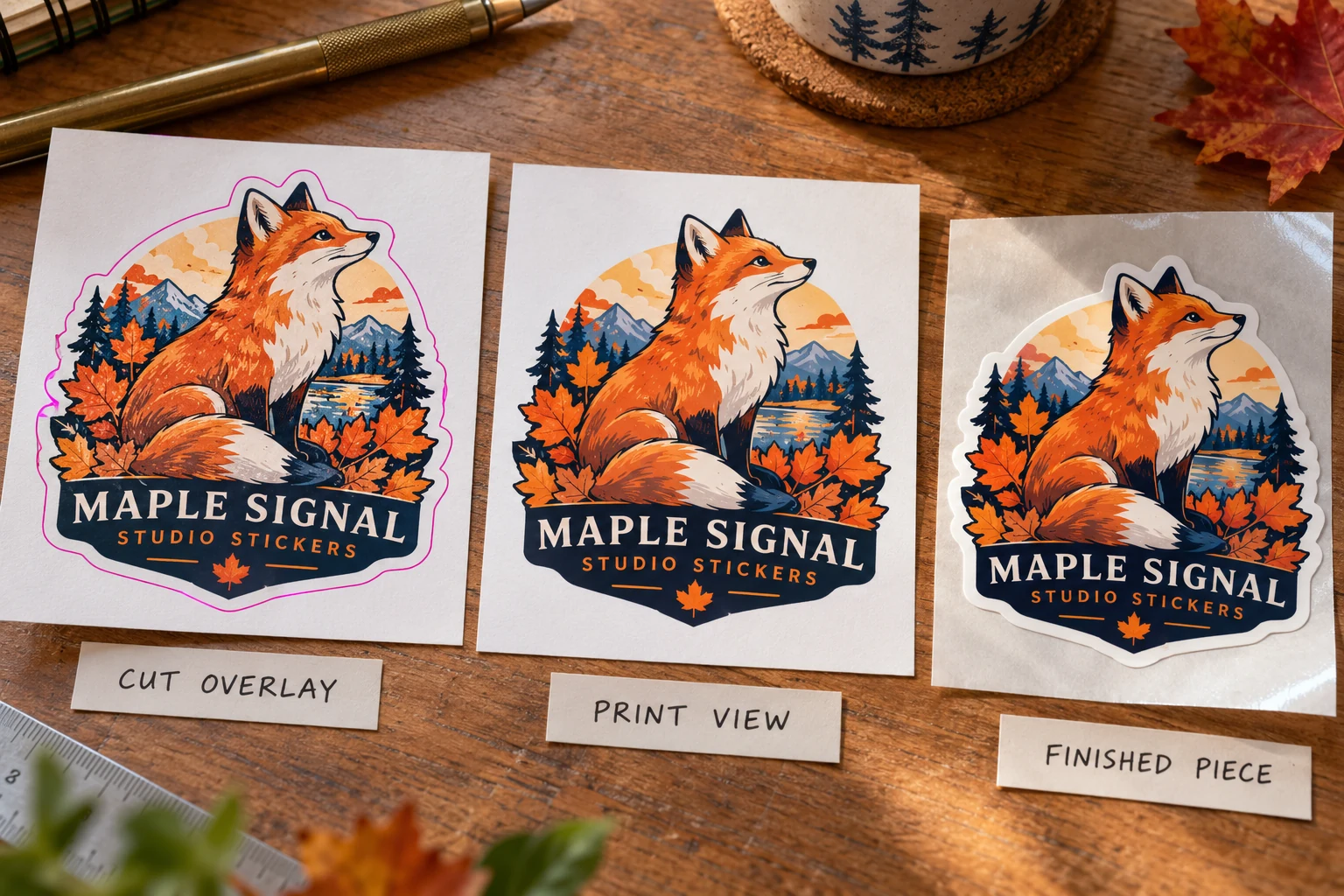
Review the actual exported file at the specified size. A print-only appearance view helps confirm that a cutting instruction will not become unwanted visible decoration. A contour overlay helps check what the physical edge will remove. Keep both references linked to the same revision.
Make small details earn their place in the shape
Fur, leaves, thin stems and sharp stars can be visually important without requiring the cut to follow every tiny detail. Compare a smoother silhouette where narrow protrusions or tight gaps may complicate handling. Ask the supplier which parts need adjustment for the proposed construction and format.
The tradeoff is between silhouette detail and a finished piece that can be cut, peeled, applied and packed as intended. A simpler contour does not have to erase the printed illustration. Conversely, retaining an elaborate contour may be reasonable if the actual process and use can support it.
Do not invent a universal minimum corner radius, gap or line width from a generic example. Those instructions need to come from the job's production route. Any proposed simplification should be visible to the buyer before approval, especially if it changes the recognizable outline or label area.
Inspect the layout beyond one sticker
On sheets, review the backing dimensions, number of stickers, spacing and access for peeling. Consider what the sheet looks like after some stickers have been removed. A technically recognizable contour can still belong to an inconvenient layout.
For rolls, include the relevant direction and repeat information in the separate roll specification. A correct individual cutline does not approve the whole roll for the buyer's application equipment. Keep that additional requirement visible without trying to encode every process detail into one contour.
The artwork handoff guide connects dimensions, versions and physical use. The file-format guide explains why a raster picture of an outline may not provide an editable cutting path. Use those resources for their distinct jobs rather than attaching several conflicting finals.
Approve a physical outcome with an identified file
Before release, confirm the accepted contour revision, finished dimensions, border appearance, backing format and any supplier-proposed changes. Retain the print-only reference and cut-overlay view together. A later size change can affect small features and spacing, so identify whether those checks need repeating.
Send ZC Labels a cutline review brief with the original artwork, final dimensions, intended delivery format, printed-border preference and any required internal cuts or delicate features. Include a clear note distinguishing decoration from cutting. That gives the next review a defined physical edge to evaluate rather than a line whose purpose has to be guessed.