
A white flower looks correct after a file adjustment, but nobody has identified which object changed or whether the receiving export contains that correction. Trace the object, its intended role and the replacement export before accepting the fix. A global switch is not a substitute for knowing what the artwork was meant to do.
For sticker overprint review, compare the actual export using an appropriate output preview and have the receiving printer confirm the intended production setup. Keep an appearance reference alongside it. The goal is to find a meaningful discrepancy before approval, not to apply one software switch to every object in the document.
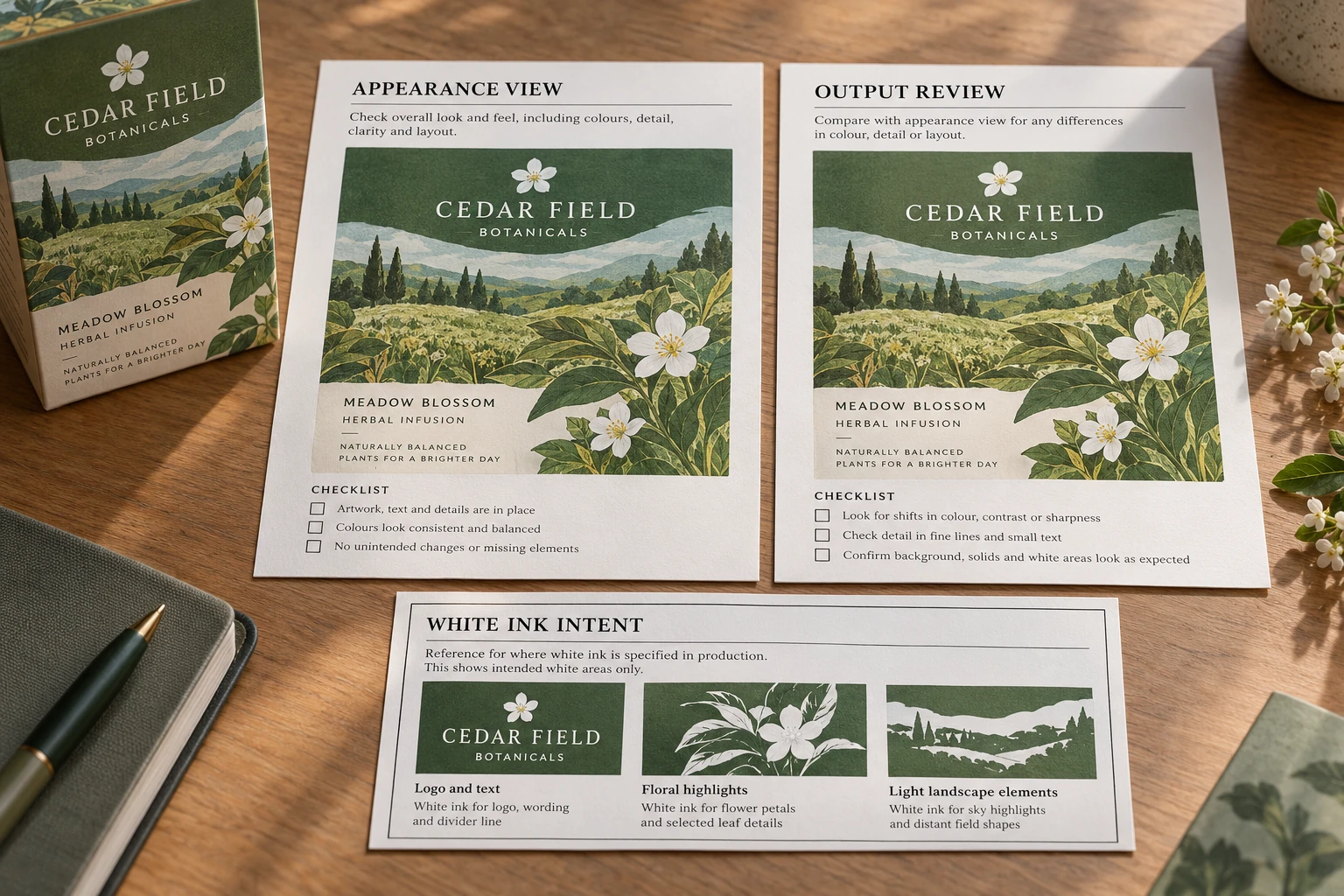
Ask which kind of white the design means
A white-looking area may represent unprinted substrate, an appearance in a review document or an intended production white separation on a clear or special material. Identify the actual intention. A screenshot cannot supply a missing production instruction merely because the preview background is white.
If the job needs printed white, ask how the supplier requires that information to be represented and named. Keep it distinct from ordinary white artwork objects and from cutting paths. Do not invent a universal spot-color name or assume that every white object should have the same attributes.
The white-ink readability guide covers the physical background and legibility decision. This article focuses on the file/output review that must preserve the approved intention. Neither a screen preview nor a named layer alone proves the finished label will meet its use requirement.
Review the export that will actually be sent
Identify the source revision and the exported PDF or other deliverable. Open that exported file rather than approving only the editable source or a messaging image. Check whether the important objects, wording and intended print areas remain present in the relevant review mode.
Adobe's white-overprint guidance explains that unintended white overprint can become apparent in overprint preview or separation output. Its software guidance identifies an output-review risk; it does not define the correct production white setup for every label supplier.
Have the artwork owner investigate any difference between the ordinary appearance view and the relevant output view. If a logo disappears, becomes unexpected or conflicts with the supplied reference, preserve the export and resolve the reason before accepting that part of the proof. Do not diagnose the exact fault from a screenshot alone.
Keep the review questions specific
| File question | Person or reference needed |
|---|---|
| Which export is current? | Artwork revision and supplied file list |
| Which objects are intended to remain visible? | Approved appearance reference |
| Is production white required? | Construction and printer's separation instructions |
| Does output preview show a discrepancy? | Designer review of the actual exported file |
| What did the supplier change? | Revised reference and owner approval |
This is not a universal preflight preset. Software versions, document construction and the receiving workflow can differ. Ask for the applicable instructions and retain them with the job. A buyer does not need to become the printer's prepress operator to insist on an identifiable export and an unresolved-issues list.
Avoid blanket instructions such as turning every overprint attribute off without understanding the document. A deliberate production setup can be harmed by an indiscriminate correction. The responsible designer and printer should agree what changes, why and which revised file demonstrates it.
Do not merge appearance, cutting and printing instructions
A decorative contour may look like a border but be intended only as a cut path. A white-support shape may be a production area rather than visible finished artwork. Keep those roles identifiable so a reviewer can tell what should print and what merely instructs another operation.
The artwork file-format guide explains why a familiar extension does not guarantee that these features survive export. A PDF can contain good vector content, raster images and several kinds of production information. Its file name cannot establish that they have the correct role.
If a supplier asks for a simplified or adjusted export, preserve the editable original. Compare the new deliverable with the current appearance reference and record any intentional difference. A correction made for output should not silently change approved wording or remove a needed artwork element.
Define what the proof approval covers
Once the file discrepancy is resolved, record the exact export and the agreed intention. Where a physical result remains uncertain, identify the required sample or reference separately. Screen review can help expose a file problem without establishing opacity, color appearance or performance on the final package.
An illustrative clear-label design may need the designer to distinguish a transparent window from a printed white support area. The resulting export can then be reviewed against that stated intention. This scenario describes an approval task; it is not evidence that a specific construction or file has passed production checks.
Do not promise that a software warning, automatic correction or clean preview catches every problem. The useful result is a controlled file, an explicit output intention and confirmation from the party receiving the production information.
Send both the intention and the file
Trace the correction to the object and the replacement export
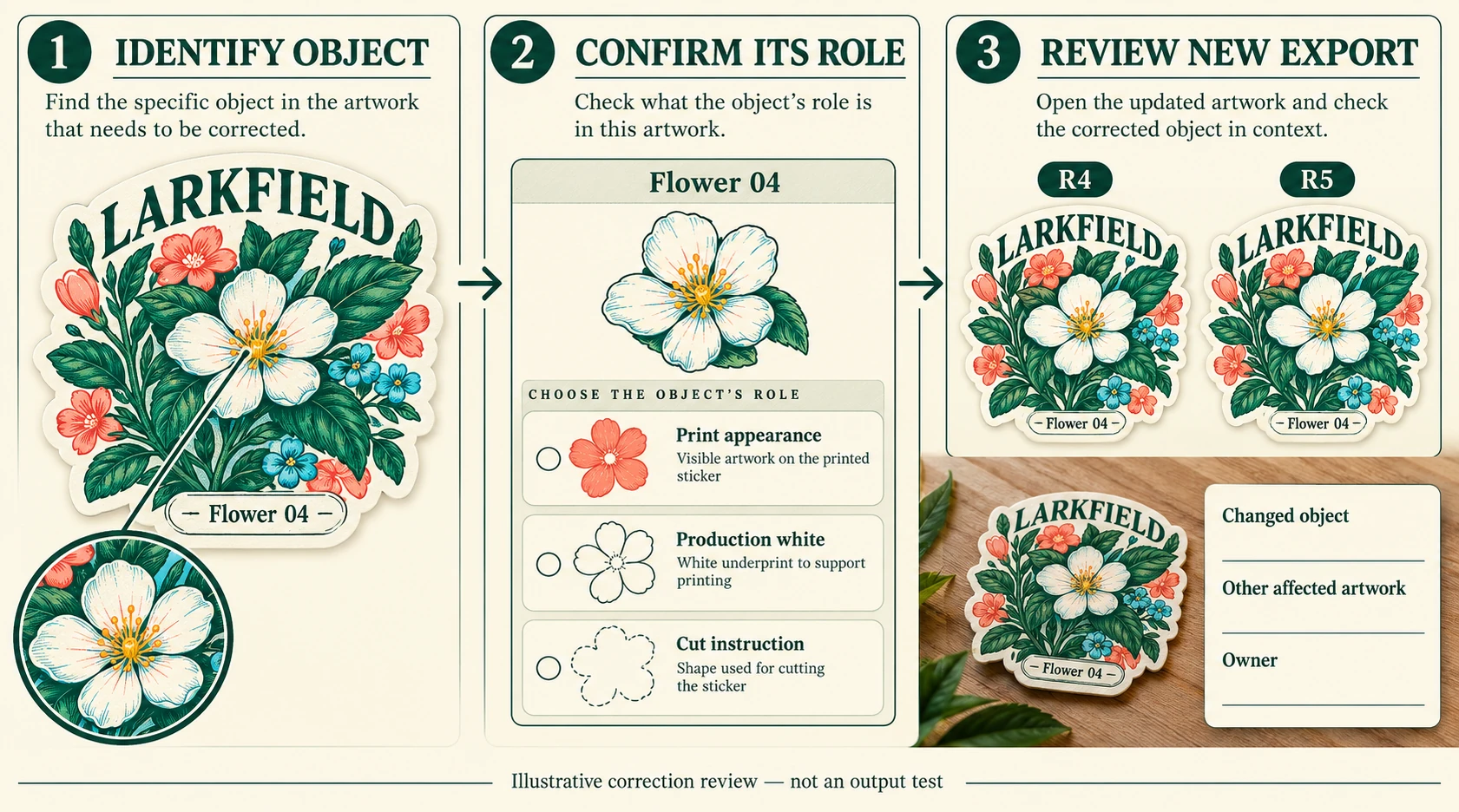
When a flower, letter or border behaves unexpectedly, give the affected object a reference the designer can locate. Record its source revision and intended role before changing attributes. The same white-looking shape might belong to visible artwork, an agreed production-white instruction or a non-printing review overlay. Its color on screen cannot choose that role for the team.
Adobe's white-overprint guidance distinguishes output handling of ordinary white from spot white and explains that output correction need not modify the source artwork. This distinction is a reason to preserve the source-to-export record, not a recommendation to use one setting on every label file.
Use a correction note with four concrete items: the object, its intended job, the approved change and the new export to inspect. Where the object is repeated in a shared design, list which variants use it. An edit in one copied file may leave another version unchanged; an edit to a shared asset may affect more artwork than the buyer intended.
| Recheck | Useful question |
|---|---|
| Changed object | Does the new export preserve the intended visible or production role? |
| Neighboring content | Did the correction alter overlapping artwork or approved wording? |
| Other variants | Which exports contain the same object or dependency? |
| Receiving workflow | Has the printer confirmed the required representation? |
Keep the ordinary appearance reference and the relevant output review together. A difference between them may be intentional, but its purpose needs to be explainable. Do not flatten or remove every special layer merely to make two screenshots look alike. That can erase an instruction required by the receiving process.
After an accepted correction, identify which earlier export is superseded. A saved screenshot of the corrected flower does not withdraw an older PDF from a production folder. Ask the receiver to confirm the file now under review and retain any still-open physical questions separately. The resulting record can close a file discrepancy without claiming that it proves finished opacity, register or durability.
For the supply-format discussion, see the relevant custom-label format with the defined application and review scope.
Send the exact source and export, marked object, intended role, affected variants, final dimensions and quantities in an output-correction enquiry. Ask which representation the receiving workflow requires and which export is now current.